Blog

  • From Domain Search to Registration: How the Process Works

    From Domain Search to Registration: How the Process Works

    Illustration showing the journey of a domain name from the browser through DNS lookup to the web server where the website is loaded.

    One simple Enter, one huge journey

    Every day we type addresses such aseasy.gr,google.comorwikipedia.organd expect a webpage to appear. That single action hides a fast sequence of systems working together: DNS, routers, nameservers, hosting servers and security checks.

    The journey at a glance

    1. You type the domain (for example easy.gr).
    2. DNS lookup starts and the browser asks a resolver for the address.
    3. Nameservers provide the domain's DNS records and the IP address is returned.
    4. Your browser connects to the hosting server at that IP.
    5. HTTPS/SSL checks run to verify the connection is secure.
    6. The server sends the website files and the browser builds the page.

    1. The browser starts the journey

    You open your browser, typeeasy.grand press Enter. At that moment the browser only knows the human-friendly name — not where the website actually lives, which machine will answer or which country hosts the infrastructure.

    To get to the website, the browser must translate the domain into a machine-friendly address: an IP address.

    2. Computers do not speak in names

    People remember names. Machines use numerical addresses calledIP addresses. An address may look like185.123.45.67or a longer IPv6 string. The domain name is for humans; the IP address is for machines.

    3. DNS enters the picture

    The Domain Name System (DNS) is the global directory that maps a domain name to an IP address. In simple terms:

    easy.gr → 185.xxx.xxx.xxx

    Without DNS we would have to remember long numbers instead of readable names — the Internet would be much harder to use.

    4. The question travels from server to server

    If your device does not already have the answer cached, a chain of queries begins. The browser asks the local DNS resolver; if that resolver has no cached value it will query higher-level servers. Root servers point resolvers to the right top-level domain (for example.gr), those point to the registry, and finally the domain's nameservers hold the DNS records that contain the actual IP.

    Small detail, big impactIn practice, much of this process is often answered from cache. This means that if the information was requested recently, DNS can respond much faster.

    5. the nameservers return the answer

    Nameservers store the DNS settings for a domain: which server hosts the website, which mail servers handle email, and other records. For visiting a site the important record is the one that maps the domain to the web server's IP address. When the nameservers return that IP, the browser knows where to connect.

    6. the browser connects to the hosting server

    Using the IP address the browser opens a connection to the web server that hosts the site. This is the point where hosting and domain meet: the domain points to an address, the hosting at that address stores and serves the actual content.

    If hosting is misconfigured or unreachable, the browser may reach the IP but receive no useful response — which is why domains and hosting are separate but interdependent.

    7. the HTTPS security check takes place

    Most websites use HTTPS. Before exchanging data the browser and server negotiate SSL/TLS: the browser verifies that the server's certificate is valid, matches the domain and allows an encrypted connection. If the certificate is OK, the padlock appears and the session continues encrypted. If not, the browser shows a security warning.

    8. the server sends the website

    The browser requests the page and the server responds with the files needed to assemble it: HTML, CSS, JavaScript, images, fonts and other assets. Modern sites can require dozens or hundreds of separate files; the browser receives pieces and assembles them rather than a single rendered image.

    9. the page appears on your screen

    After downloading assets the browser parses the HTML, applies styles, executes scripts, loads images and places elements in the right positions. What looks like an instant load is actually dozens of coordinated steps — usually completed in less than a second.

    Why this matters

    Knowing this flow explains common problems: a DNS misconfiguration can make a domain unreachable; hosting issues can leave the server silent even if the IP is correct; an expired SSL certificate triggers browser warnings. Each layer — DNS, nameservers, hosting, SSL — plays a specific role, and failure in any layer can break the experience.

    What have you learned?

    A simple press of Enter triggers a global collaboration of systems. You now know why DNS exists, what nameservers do, why hosting matters, how HTTPS protects connections and how browsers find and build websites. The Internet is not a magical cloud but a complex, distributed system that turns readable names likeeasy.grinto working webpages.


  • AI and e-commerce

    AI and e-commerce

    Illustration of an AI assistant in an e-commerce environment with products, customer support, product recommendations and sales analytics.

    AI that actually helps your online store

    Artificial intelligence is no longer something only large platforms and tech giants can use. Even a small or mid-sized online store can apply AI to work faster, present products more effectively and support customers with greater consistency.

    The point is not to add AI everywhere, but to use it where it solves real problems: product descriptions, customer support, marketing, recommendations and data analysis.

    Quick checklist: Where AI delivers fast wins

    • Generate first drafts of product descriptions for editors to refine.
    • Power recommendations that respond to behavior and past purchases.
    • Automate answers to common support questions tied to your knowledge base.
    • Use AI to draft campaign copy and test variations faster.
    • Analyze sales and funnel data to spot improvement opportunities.

    Product descriptions without starting from scratch

    Writing product descriptions becomes slow and repetitive when your catalogue grows. AI can produce a first draft from product features, audience and brand tone. A human should review, edit and adapt the final version.

    Best practice: let AI create the first draft; keep final decisions with your team so accuracy and brand voice are preserved.

    Smarter product recommendations

    AI helps recommend products based on behavior, preferences, previous purchases and common searches. The value is not showing more items but showing the right items at the right moment—helping customers find what they need faster.

    Customer support that reduces waiting time

    AI assistants can handle routine questions about orders, shipping, returns, payments and availability. When they’re connected to a well-structured knowledge base, they reduce response time and let human agents focus on complex cases.

    Marketing and campaign support

    Use AI to draft email campaigns, headlines, ad copy and social captions. It accelerates the creative process and supplies more ideas to test; it does not replace your strategy.

    Sales and behaviour analysis

    Online stores generate lots of signals—page views, cart additions, drop-offs and category performance. AI can help interpret that data and turn numbers into actionable decisions: identify pages that need better descriptions, find cross-sell opportunities or spot underperforming products.

    Where you should be careful

    AI must not publish product descriptions, prices, return policies or technical specifications without review. Errors in details such as warranty or availability can quickly damage customer trust.

    Be cautious with customer data: do not upload personal information into tools without understanding their privacy policies and compliance requirements.

    Common mistakes to avoid

    1. Publishing AI content without human review: AI can make factual mistakes or produce generic text.
    2. Using the same style for every product: repetitive descriptions lower perceived quality.
    3. Adding a chatbot that does not solve real problems: a non-helpful bot frustrates customers.
    4. Ignoring data: AI is most effective when it works with real store data, not assumptions.
    5. Using AI without a privacy policy that covers how customer data is handled.

    Frequently asked questions

    Can AI write all product descriptions?It can help significantly, but every description should be reviewed before publication.

    Can AI increase sales?It can support sales by improving content, making recommendations more relevant, speeding up support and clarifying data-driven decisions.

    Does AI only make sense for large stores?No. Small e-commerce businesses can save time on descriptions, emails and customer support and gain insights from their own data.

    Conclusion

    AI can be a practical, valuable tool for any online store when used with clear objectives and human oversight. Its real value lies in speeding up routine work, improving the customer experience and extracting better insights from the data your shop already produces.

    Want to explore AI for your e-shop?

    Easy provides guides and resources to help online stores apply AI smartly—drafting content, improving recommendations and automating support without losing control. Learn more at Easy.

  • AI tools for small / medium business

    AI tools for small / medium business

    Illustration of an AI assistant on a laptop with digital tools for content creation, marketing, customer support, analytics and automation.

    Introduction: AI at a human scale

    Not long ago, artificial intelligence belonged to teams of engineers and data scientists. Today, many AI tools are accessible to non-technical users and can make daily work faster and less repetitive. The aim isn't to collect every shiny tool — it's to pick solutions that solve real business problems and free up time for higher-value work.

    Start small: where to focus first

    Pick one high‑impact task — the one that consumes the most time — and test AI there. Typical starting points:

    • Content drafts (product descriptions, newsletters)
    • Answering frequent customer questions
    • Summarizing meeting notes and documents

    Measure results, adjust prompts and guard sensitive data. Small wins compound quickly.

    Content creation: draft faster, keep the voice

    Content generation is one of the most mature uses of AI. Tools can produce article drafts, product descriptions, email templates, FAQs and social captions in seconds. Use them as a starting point — edit to add your expertise and brand tone.

    • Generate multiple headline or caption options and A/B test what works.
    • Ask the AI for different tones: professional, playful, concise or explanatory.
    • Reuse prompts that give consistently good results to speed future work.

    Customer support: faster, more consistent answers

    AI assistants can handle routine requests, point visitors to relevant pages, and reduce response times for common questions. When they’re connected to a well-structured knowledge base, they deliver consistent answers around the clock.

    • Use AI for first-level support and to triage tickets for human agents.
    • Keep an escalation path for complex, legal or financial questions.
    • Continuously update the underlying knowledge base so answers stay accurate.

    Marketing and social media: ideas and scale

    AI can help generate campaign ideas, ad copy, publishing schedules and social media captions. It’s especially useful when you need several creative variations quickly.

    • Automate content calendars and bulk caption generation, then human-edit for brand fit.
    • Ask AI to rewrite copy for different channels (email, Instagram, LinkedIn).
    • Use generated lists of keywords or hashtags as starting points for SEO and discovery.

    Organizing everyday work: less admin, more focus

    AI can summarize long documents, turn meetings into action lists, organize notes and find information faster. That reduces time spent on repetitive admin and gives teams more capacity for important decisions.

    • Turn meeting transcripts into concise summaries and assigned tasks.
    • Automatically extract contact details, deadlines and action items from documents.
    • Use searchable summaries to make company knowledge easier to find.

    Data analysis: insights without complex tools

    Even without advanced analytics skills, AI can interpret reports, spot trends and explain numbers in plain language. It helps turn raw data into actionable recommendations while leaving final decisions to people.

    • Ask AI to highlight anomalies, recurring patterns or top-performing products.
    • Use natural-language queries to explore business data without SQL knowledge.

    Automation: combine AI with workflows

    Combining AI with workflow automation reduces repetitive work and keeps things moving consistently. Common automations include:

    • automatic email responses and follow-ups,
    • scheduled report generation,
    • support ticket categorization and routing,
    • document summarization and distribution,
    • task creation and prioritization from meeting notes.

    Where you should be careful

    AI is powerful but imperfect. Always review outputs before publishing, and avoid sharing truly confidential information unless you understand the service’s privacy and data‑handling policies. Be particularly cautious with legal, financial, medical or safety‑critical content.

    • Verify facts and references before using generated content externally.
    • Keep a human-in-the-loop for decisions that affect customers or compliance.
    • Review vendor policies about data retention and training usage.

    How to choose the right tools

    Don’t buy tools because they exist. Follow a short checklist:

    1. Identify the task that wastes the most time today.
    2. Test a single tool on a real example — measure time saved and quality.
    3. Ensure you can protect sensitive information and maintain an audit trail.
    4. Scale to adjacent tasks only after you have reliable results.

    Frequently asked questions

    Do I need technical knowledge?No — many modern AI tools accept natural-language prompts and are designed for non-technical users.

    Can AI replace an employee?Usually not. AI reduces the time needed for repetitive tasks and raises productivity, but people are still needed for judgement, creativity and final approvals.

    Do I need lots of different AI tools?Not necessarily. A small set of versatile tools often covers most daily needs if configured correctly.

    Conclusion

    AI is no longer a luxury for big companies. With purposeful selection and sensible safeguards, even small and medium businesses can use AI to become more organized, efficient and productive. The key is to start with a real problem, measure improvement, and keep humans in control of critical decisions.

    Want practical guidance?

    Begin with one process, run a short pilot and measure results. If you’d like structured help, Easy provides guides and resources to discover which AI tools best fit your workflow.

  • How AI helps you find better domain names

    Illustration of an AI tool generating better domain name ideas based on keywords, brand concepts and available domain extensions.

    Finding a Domain Name Is No Longer a Game of Chance

    Not long ago, searching for a domain name was mostly trial and error. You would type an idea, discover it was already taken, tweak the wording, try again, and eventually settle for something less than ideal.

    An AI Domain Finder changes that process. Instead of guessing random combinations, you describe your business, your brand personality, and your target market. The tool generates domain suggestions that make sense—not just names that happen to be available.

    What Is an AI Domain Finder?

    An AI Domain Finder is an intelligent naming assistant. It analyzes the description of your business, product, or service and generates domain name ideas based on meaning, branding potential, memorability, and ease of pronunciation.

    It doesn’t replace human judgment. Instead, it gives you a stronger starting point. Rather than beginning with a blank page, you begin with a shortlist of ideas that have already passed an initial layer of logical analysis.

    What Should You Tell the AI?

    The clearer your description, the better the suggestions. Simply writing “I need a domain for an online store” isn’t enough. Explain what you sell, who your audience is, the style you want to convey, and the market you serve.

    For example, “premium pet products for new pet owners in Greece” provides far more useful context than simply saying “pet shop.” AI performs best when it has clear direction. Vague prompts usually produce vague results.

    What Makes a Good Domain Name?

    A good domain should be memorable, easy to spell, and simple to pronounce without explanation. Ideally, it has a natural rhythm, sounds professional, and leaves room for your business to grow.

    It should also avoid locking your brand into an overly narrow description. A name that seems perfectly accurate today could become limiting tomorrow. Strong branding allows space for future expansion.

    The Role of Domain Extensions

    The domain extension influences how people perceive your brand. A .gr domain builds trust within the Greek market, while .com offers broader international recognition. Extensions such as .ai, .app, .shop, or .digital can reinforce a specific industry or identity.

    An AI Domain Finder becomes even more valuable when it considers both the domain name and the available extensions together. Sometimes the perfect brand name isn’t available as a .com, but works exceptionally well with another extension.

    AI and Human Judgment

    AI can generate hundreds of ideas in seconds. People decide which ones have personality, fit the target audience, and can succeed across logos, marketing campaigns, and everyday communication.

    The smartest approach is to let AI expand your options, then apply critical thinking when making the final choice. Don’t select the first suggestion simply because it sounds clever. Great naming requires both creativity and discipline.

    Common Naming Mistakes

    The most common mistake is choosing names that are too long. Another is using unusual spellings that require constant explanation. A third is selecting names that resemble competitors or unintentionally evoke unrelated brands.

    A simple test is this: can you say the domain over the phone and have someone spell it correctly the first time? If not, your brand will create unnecessary friction from day one.

    Frequently Asked Questions

    Can AI find available domain names? It can generate strong ideas and combine them with availability checks. Final registration should always be verified before purchase.

    Is AI better than a human? No. It’s a tool that accelerates the creative process, not a replacement for human judgment.

    How many ideas should I review? Enough to explore meaningful alternatives, but not so many that decision fatigue takes over. Quality matters more than quantity.

    Ready to Find the Right Domain?

    Easy’s AI Domain Finder helps you discover memorable, brandable domain names based on your business, audience, and goals.

    Try the AI Domain Finder →
  • What to do if your website is hacked

    What to do if your website is hacked

    Illustration of the first steps to contain, clean and secure a compromised website.

    Stay calm and act methodically

    Unexpected ads, a Google security warning, strange redirects or loss of administrator access are alarming — but panicking makes recovery harder. Breathe, gather information and follow a clear sequence: confirm the problem, preserve evidence, contain the attack, remove malicious code and then repair and harden the site.

    Quick reminder

    Don’t delete files or restore backups immediately. Early changes can destroy evidence that explains how the attacker got in — and without that you risk repeated compromises.

    The first checks: is it really a hack?

    Not every site problem is a hack. Before you commit to incident response, rule out common non‑malicious causes:

    • Domain expired or DNS misconfigured
    • Hosting outage or control panel problem
    • Expired or misconfigured SSL/TLS certificate
    • A buggy plugin or theme (especially after an automatic update)
    • Search engine warnings caused by outdated content or third‑party scripts

    Step 1 — Collect information and evidence

    Before you change anything, collect facts that will help you understand the scope of the incident and find the entry point:

    • Take screenshots of warnings, injected content and unexpected pages.
    • Check server and application logs (access logs, error logs, control panel logs).
    • Note which URLs are affected (homepage, specific pages, admin area).
    • Identify when the issue started and any recent changes (plugin installs, updates, new users, file uploads).

    Step 2 — Change all passwords and revoke sessions

    Assume credentials were exposed. Immediately change passwords for:

    • Hosting control panel (cPanel, Plesk, ISPmanager, etc.)
    • CMS administrator accounts (WordPress admins)
    • FTP/SFTP and SSH accounts
    • Database users (MySQL/PostgreSQL)
    • Any linked email accounts and third‑party integrations

    Where possible, revoke active sessions and API keys. Enable two‑factor authentication for accounts that support it.

    Step 3 — Make a full backup (preserve evidence)

    Make a complete snapshot of your site (files and database) before you delete anything. This preserves evidence for investigation and gives you a safe copy to inspect offline.

    Step 4 — Scan and inspect files and users

    Look for indicators of compromise:

    • New or recently modified files in web folders (suspicious PHP,.js,.php5,.phtml files)
    • Files with obfuscated or base64‑encoded code
    • Unknown administrator users in your CMS
    • Unexpected scheduled tasks (cron jobs) or persistent backdoors

    Step 5 — Find the entry point

    If you don’t identify how the attacker gained access, they may return.Common entry points are:

    • Outdated CMS core, plugins or themes (WordPress is a frequent target)
    • Compromised FTP/SSH or weak passwords
    • Vulnerable third‑party scripts or integrations
    • Unpatched server software or misconfigured permissions

    Step 6 — Contain and remove the malware

    Contain the damage, then remove malicious code carefully:

    1. Temporarily take the site offline or show a maintenance page if necessary.
    2. Replace infected core files with clean copies from an official source.
    3. Remove unknown plugins, themes and suspicious files — but keep your backup snapshot.
    4. Clean or rebuild modified templates and uploads; scan media folders for hidden scripts.
    5. Reset database users’ passwords and inspect tables for injected content.

    Step 7 — Restore from a known‑good backup if needed

    If the site is extensively damaged, restoring from a clean backup is often the safest route. Ensure the backup predates the compromise and that you patch the entry point before putting the restored site online.

    Step 8 — Patch, update and harden

    After recovery, close the doors the attacker used and reduce future risk:

    • Update CMS, plugins, themes and server software to the latest secure versions.
    • Harden file and folder permissions and disable unnecessary services.
    • Limit admin accounts and use strong, unique passwords plus two‑factor authentication.
    • Install a Web Application Firewall (WAF) or CDN with security features where appropriate.
    • Implement regular backups and test restores.

    Step 9 — Monitor and confirm clean operation

    After the site is live again, monitor logs, uptime and search engine warnings. Consider running malware scans for several days and verify there are no reoccurring modifications.

    When to call for professional help

    If the compromise is extensive, you cannot locate the entry point, or sensitive user data may have been exposed, get professional incident response. A security assessment can identify the root cause and recommend safe next steps.

    Need help investigating a compromise?

    Easy’s website security team can assist — they can help evaluate the incident, identify the entry point and suggest the safest way to recover. Request a Website Security Assessment.

    Conclusion

    The biggest mistake after a website compromise is restoring the site without identifying and fixing the root cause.Preserve evidence, change credentials, remove threats, then restore and harden your site. Regular updates, strong passwords, two‑factor authentication and tested backups are the best defenses against future incidents.

  • What is a WAF?

    Illustration of a Web Application Firewall protecting a website from malicious traffic, attacks and suspicious requests.

    An Extra Layer of Protection for Your Website

    Most website owners know what an SSL certificate is.

    Far fewer know what a WAF is.

    Yet in many cases, a WAF can stop attacks that SSL alone cannot prevent.

    If your website is publicly accessible on the Internet, someone is trying to reach it.

    Unfortunately, not every visitor has good intentions.

    What Does WAF Mean?

    WAF stands for Web Application Firewall.

    It is a security layer that sits between your visitors and your website.

    Before any traffic reaches your server, it passes through the WAF.

    There, every request is inspected.

    If the request appears legitimate, it is allowed through.

    If it looks suspicious or malicious, it is blocked before reaching your application.

    In Simple Terms

    Imagine a retail store.

    SSL is the secure front door.

    The WAF is the security guard standing in front of that door.

    SSL ensures the communication is encrypted.

    The WAF decides who is allowed to enter.

    Why SSL Alone Is Not Enough

    This is one of the biggest misconceptions we encounter.

    “I have SSL, so I’m secure.” Not necessarily.

    SSL protects the connection.

    It does not automatically protect the website itself.

    An attacker can still use an encrypted SSL connection to send malicious requests.

    SSL will not stop those requests.

    A WAF can.

    What Types of Attacks Can a WAF Block?

    SQL Injection

    Attempts to manipulate or access databases through malicious queries.

    Cross-Site Scripting (XSS)

    Injection of malicious scripts into website forms or input fields.

    Brute Force Attacks

    Repeated password attempts until valid credentials are found.

    Bot Attacks

    Automated programs that scan websites, test passwords, send spam and search for vulnerabilities.

    Exploit Attempts

    Attempts to exploit known software vulnerabilities.

    A Real-World Example

    Imagine you run a WordPress website.

    An automated bot repeatedly probes common WordPress entry points such as:

    /wp-admin
    /wp-login.php
    /xmlrpc.php

    thousands of times.

    Without a WAF, your server must process every request, increasing load and giving attackers more opportunities to succeed.

    With a WAF, suspicious behavior is detected, the attacker is blocked and the attack is stopped before it reaches your application.

    How Does a WAF Work?

    Every request sent to your website is analyzed.

    A WAF evaluates factors such as:

    • IP address
    • visitor behavior
    • request frequency
    • known attack signatures
    • malicious payloads

    If something appears suspicious, the connection can be terminated before the request ever reaches your website.

    Does a Small Website Need a WAF?

    Many people ask, “Why would anyone target my website?”

    The reality is different.

    Most attacks are not aimed at specific businesses.

    They are fully automated.

    Bots continuously scan millions of websites looking for vulnerabilities.

    They don’t care whether you’re a global enterprise or a small business.

    They care whether you’re vulnerable.

    Which Websites Benefit Most?

    E-commerce Stores

    They handle orders and sensitive customer information.

    WordPress Websites

    They are among the most common targets of automated attacks.

    Business Websites

    They often include contact forms and customer data.

    SaaS Platforms and Web Applications

    The more functionality your application provides, the more valuable application-layer protection becomes.

    WAF and DDoS Protection

    Many modern WAF solutions also include protection against Distributed Denial-of-Service (DDoS) attacks.

    These attacks flood a server with artificial traffic in an attempt to exhaust its resources.

    The level of protection depends on the provider and the service you choose.

    Common Mistakes

    Believing SSL Is Enough

    The most common misconception.

    Ignoring WordPress and Plugin Updates

    A WAF helps reduce risk, but it does not replace regular software updates.

    Using Weak Passwords

    A WAF lowers exposure but cannot compensate for poor security practices.

    Thinking You’re Too Small to Be Targeted

    Most attacks are fully automated and do not discriminate by company size.

    WAF or Antivirus?

    They are not competing technologies.

    They protect different layers of your IT environment.

    Antivirus

    Protects devices and files.

    WAF

    Protects websites and web applications.

    Mini Checklist

    If any of the following applies to your website, you should seriously consider using a WAF:

    ✔ You run a WordPress website
    ✔ You operate an online store
    ✔ You collect customer information
    ✔ You use contact forms
    ✔ Your website is important to your business

    Conclusion

    SSL protects the connection.

    A WAF protects the application.

    They do not serve the same purpose.

    They complement each other.

    If SSL is the secure front door of your website, the WAF is the security guard deciding who gets through.

    In a world where automated attacks happen every day, a WAF is one of the most effective security layers a business can add to its online presence.

    Want to see if your website is properly protected?

    Use Easy’s Website Security Check to review the essential security layers protecting your website.

    Run a Website Security Check →
  • What is SSL and why does every website need it?

    Browser displaying an SSL padlock, illustrating encrypted communication between a user and a website.

    SSL Is No Longer Optional

    Just a few years ago, SSL was considered something that mainly e-commerce stores and banks needed. Today, every professional website should use HTTPS.

    The reason is simple: users, browsers and search engines now expect every website to provide a secure connection. A website without SSL looks outdated, unprofessional and less trustworthy.

    What Is an SSL Certificate?

    An SSL certificate is a digital certificate that encrypts the connection between a visitor’s browser and the web server hosting the website.

    When SSL is correctly installed, the website uses HTTPS instead of HTTP. This means the data exchanged between the browser and the server is encrypted rather than transmitted as plain, readable text.

    What Does SSL Actually Protect?

    SSL primarily protects data while it is being transmitted. This is especially important when visitors submit forms, log in, send contact information or complete online purchases.

    • Encrypts communication between the browser and the server.
    • Reduces the risk of data interception while information is in transit.
    • Helps visitors recognize that they are connected securely.
    • Essential for e-commerce stores, login pages and contact forms.
    In practice: When a visitor submits information through a form, SSL protects that data while it travels from the browser to the server.

    What Doesn’t SSL Protect?

    This is where many misconceptions begin. Many people assume that because a website displays the padlock icon, the entire website is secure. That is not true.

    SSL does not protect against:

    • A compromised WordPress installation
    • Vulnerable plugins
    • Malicious code running on the website
    • Weak administrator passwords
    • Phishing websites that also use SSL certificates
    • Incorrect permissions or poor server administration

    A malicious website can still have a valid SSL certificate. SSL only guarantees that the connection is encrypted—not that the website itself is safe or trustworthy.

    Does SSL Help with SEO?

    HTTPS is now considered a basic technical requirement for a trustworthy website. It won’t automatically push you to the top of search results, but not having HTTPS sends a negative signal to both users and search engines.

    Even more importantly, without SSL, modern browsers may display a “Not Secure” warning. That alone is often enough to damage user trust before they even read your content.

    What Types of SSL Certificates Are Available?

    DV SSL

    Domain Validation (DV) confirms that you control the domain name. It is the most common and suitable option for websites, blogs and small businesses.

    OV SSL

    Organization Validation (OV) includes additional verification of the business or organization. It is suitable for companies that want stronger business identity verification.

    EV SSL

    Extended Validation (EV) involves the highest level of organizational verification. It is mainly used in environments where identity verification and customer trust are especially important.

    What Is Mixed Content?

    Even if your website has SSL enabled, some resources may still load over HTTP. This is known as mixed content and can trigger browser warnings or weaken the perception of security.

    Mixed content usually involves images, JavaScript files, fonts or outdated URLs that have not yet been updated to HTTPS.

    SSL Installation Checklist

    ✔ Does the website load correctly over HTTPS?
    ✔ Does HTTP automatically redirect to HTTPS?
    ✔ Are there any mixed content warnings?
    ✔ Has the SSL certificate expired?
    ✔ Does it cover both the www and non-www versions?
    ✔ Are forms and login pages served only over HTTPS?
    ✔ Do the sitemap and canonical URLs use HTTPS?

    Why SSL Alone Is Not Enough

    SSL is an essential layer of security, but a secure website requires much more: an up-to-date CMS, secure plugins, a Web Application Firewall (WAF), reliable backups, strong passwords and continuous monitoring.

    Think of SSL as a locked front door protecting data while it travels. If all the windows of the house are left open, locking the front door alone won’t keep the house secure.

    Conclusion

    SSL is essential. Without it, no professional website appears complete or trustworthy.

    However, it’s important to understand what SSL does—and what it doesn’t. It secures the connection. It does not replace the overall security of your website.

    Want to check whether your SSL certificate is working correctly?

    Use Easy’s SSL Check to verify that your certificate is active, properly installed and free from common configuration issues.

    Check Your SSL
  • How to organize business mailboxes

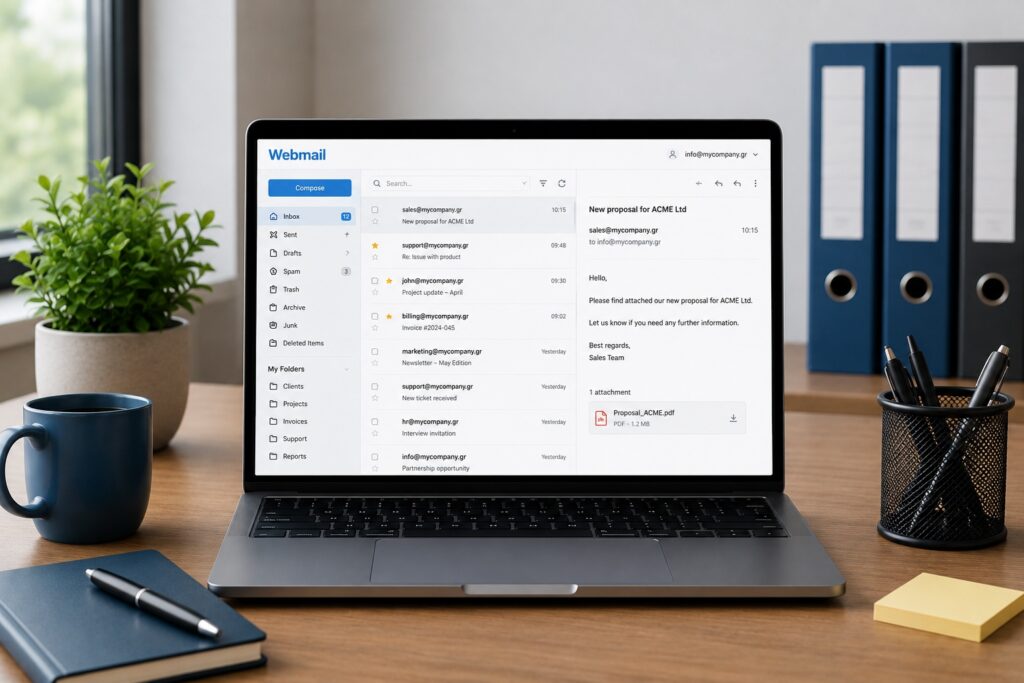
    Laptop showing a webmail interface in a professional office, with organized mailboxes, folders and business email accounts.

    Why Mailbox Organization Matters

    Email is one of the core communication tools of every business. Quotes, customer requests, invoices, partnerships, orders and internal discussions all pass through it.

    When everything ends up in one generic mailbox, or when employees use personal email accounts for company communication, information is easily lost. A message may remain unanswered, the wrong reply may be sent, or the history of a conversation may disappear.

    A clear mailbox structure is not a luxury. It helps the business work more clearly, more quickly and more professionally.

    Start with Business Roles

    The best starting point is to organize email around business functions, not only around individual names.

    info@mybrand.com
    sales@mybrand.com
    support@mybrand.com
    billing@mybrand.com
    hr@mybrand.com
    marketing@mybrand.com

    This helps customers know where to send their request and helps your team understand who is responsible for each communication flow.

    If everything goes to info@, it may look simple at first. As message volume grows, however, it becomes harder to separate sales, support, billing and urgent customer requests.

    When Should You Use Personal Mailboxes?

    Personal business mailboxes still have a place inside a company. Addresses such as maria@mybrand.com or john@mybrand.com are useful for direct professional communication.

    They should not, however, become the main public addresses for critical business functions. If all sales requests go to one employee and that person is unavailable, changes role or leaves the company, continuity is lost.

    Public business functions should remain connected to role-based addresses such as sales@, support@ and billing@.

    Shared Mailbox or Separate Account?

    A shared mailbox is useful when more than one person needs to view and reply to the same stream of communication. For example, support@ may be handled by the entire support team.

    A separate mailbox is more appropriate when communication is personal or belongs to a specific role with restricted access, such as management, accounting or HR.

    Rule of thumb: When communication belongs to a company function, use a role-based mailbox. When it belongs to a specific person, use a personal mailbox.

    Aliases Are Your Friend

    Not every address needs to be a separate mailbox. In many cases, an alias is enough.

    For example, you can have:

    contact@mybrand.com
    hello@mybrand.com
    office@mybrand.com

    and route all of them to info@mybrand.com.

    This lets you keep several easy public-facing addresses without creating dozens of separate mailboxes that need to be checked, secured and maintained individually.

    Do Not Use One Mailbox for Everything

    The classic mistake is sending everything through info@: quotes, technical support, CVs, orders, billing questions and general enquiries.

    This can work only at the very beginning. Later, it creates delays, wrong priorities and missed messages.

    The solution is not to create endless mailboxes. The solution is to build clear communication flows for the main functions of your business.

    Use Folders and Rules

    Even the right mailbox can become chaotic without folders, filters and rules.

    Quotes
    Customers
    Invoices
    Support
    Pending
    Completed

    Rules can automatically move messages, flag important senders or separate system notifications from real customer requests.

    The goal is not to hide emails. The goal is to find what you need quickly.

    Be Careful with Access Permissions

    Not everyone should have access to everything. Mailbox access should be based on each person’s role inside the business.

    billing@ → accounting team
    hr@ → HR or management
    support@ → support team
    sales@ → sales team

    This reduces the risk of mistakes, protects sensitive information and gives you better control over internal communication.

    Backup and Security

    Business mailboxes often contain critical information: contracts, quotations, invoices, customer data and internal decisions. It is not enough for them to exist. They need to be protected.

    Strong passwords, MFA where available, properly configured SPF, DKIM and DMARC, careful access management and a reliable backup or retention policy are essential.

    Email is a key part of business continuity. If access is lost or important messages are deleted, the problem is not just technical. It becomes operational.

    Common Mistakes

    1. Everything goes to info@: simple at first, unmanageable later.
    2. Using personal Gmail accounts for company work: poor branding, lower trust and loss of control.
    3. Using the same password across accounts: a serious security risk.
    4. No folder structure: makes searching and continuity harder.
    5. No backup or retention policy: one accidental delete can become a serious problem.

    Frequently Asked Questions

    Do I need a separate mailbox for every employee? Usually yes. It provides clear identity, better security and easier management.

    Which is better, an alias or a new mailbox? Use an alias when you simply need another public address that routes to the same recipient. Use a separate mailbox when you need independent access and storage.

    Should everyone have access to support@? Not necessarily. Access should be granted only to the team members who actually need it.

    Conclusion

    A well-organized email system does more than make daily work easier. It protects the business, improves customer support and allows the team to grow without creating communication chaos.

    The right mailbox structure presents a more professional image externally and creates better order internally.

    Want to organize your business email properly?

    Easy can help you build a secure, scalable mailbox structure tailored to your team’s needs.

    Learn more at Easy →
  • SPF, DKIM and DMARC explained

    Simple illustration showing how SPF, DKIM and DMARC protect business email authentication and delivery

    The 3 Settings That Decide Whether Your Emails Are Trusted

    Have you ever sent an email and the recipient never received it?

    Or did they find it in the spam folder, even though it was a legitimate message?

    In many cases, the problem is not the content of the email.

    It is the trustworthiness of the domain that sent it.

    This is where three terms appear more and more often:

    SPF
    DKIM
    DMARC

    They sound technical. In reality, they have one very simple purpose:

    To prove that the email you sent really belongs to you.

    Why Are They Needed?

    Billions of emails are sent every day.

    Alongside legitimate messages, there is also spam, phishing, fraud and forged email.

    Email providers such as Gmail, Outlook, Yahoo and Apple Mail need to decide in a fraction of a second whether an email can be trusted.

    To do that, they use authentication checks.

    The most important ones are SPF, DKIM and DMARC.

    What Is SPF?

    SPF stands for Sender Policy Framework.

    Do not be intimidated by the name.

    The idea is simple.

    SPF declares:

    Which servers are allowed to send email on behalf of your domain.

    Example

    If your domain is mybusiness.com, SPF tells receiving mail servers whether Google, Microsoft or your own mail server is allowed to send email for that domain.

    If someone else tries to send email pretending to be your domain, the recipient’s mail server can reject it or treat it as suspicious.

    SPF = Who is allowed to send email.

    What Is DKIM?

    DKIM stands for DomainKeys Identified Mail.

    DKIM works differently.

    It does not only check who sent the email.

    It checks whether the message was changed during delivery.

    How Does It Work?

    Every outgoing email receives a digital signature.

    The receiving server can use that signature to verify that the email is authentic and that its content has not been altered.

    Think of it as a security seal on an envelope.

    DKIM = Proof that the message was not tampered with.

    What Is DMARC?

    DMARC stands for Domain-based Message Authentication, Reporting and Conformance.

    DMARC acts as the coordinator.

    It takes the results from SPF and DKIM and decides what should happen next.

    If an email fails authentication checks, DMARC can instruct the receiving server to:

    Let it pass
    Send it to spam
    Reject it completely
    DMARC = The rule that decides what happens when something looks suspicious.

    How Do They Work Together?

    These three technologies do not compete with each other.

    They work together.

    SPF: checks who sent the email
    DKIM: checks whether the message is authentic
    DMARC: decides what should happen

    First, the sender is checked. Then the message is verified. Finally, the receiving server decides how to handle it.

    What Happens If They Are Missing?

    If a domain is not configured properly:

    • emails may land in spam
    • newsletters may be rejected
    • quotations may not be delivered
    • customers may never receive important messages

    A Common Scenario

    A company changes email provider.

    Everything appears to work.

    But the SPF record is not updated.

    Suddenly, emails are being sent, but many recipients never see them.

    Why Do They Affect Spam Placement?

    Major email providers do not only evaluate the content of a message.

    They also check the identity of the sender.

    If the domain can prove who it is, the chances of successful delivery increase and the risk of being marked as spam decreases.

    How Do I Know If They Are Configured Correctly?

    There are online tools that can check SPF, DKIM and DMARC records in just a few seconds.

    Most email and hosting providers also offer documentation or technical support for these settings.

    The Most Common Mistakes

    Missing DMARC

    Many domains have SPF and DKIM but no DMARC policy.

    Outdated SPF

    The company changes provider, but the SPF record still points to the previous setup.

    Multiple SPF Records

    The DNS zone contains more than one SPF record. This often causes authentication problems.

    No Testing After Changes

    Every change to an email provider should be followed by a fresh authentication check.

    Are These Only for Large Companies?

    No.

    In fact, they are often even more important for small businesses.

    A lost email can mean a lost quotation, a lost customer or a missed order.

    Conclusion

    SPF, DKIM and DMARC are not just technical settings.

    They are the way your domain proves its identity.

    If email is the digital voice of your business, then SPF, DKIM and DMARC are the identity documents that prove this voice is truly yours.

    The more accurately they are configured, the better the chances that your emails will reach the right inbox.

    Want to check whether your domain is configured correctly?

    Use Email Trust Check to review your SPF, DKIM and DMARC settings.

    Check Email Settings →
  • Gmail or professional email?

    Gmail and professional business email on a custom domain for secure business communication

    Which One Inspires More Trust?

    When starting a new business, one of the first things you’ll need is an email address.

    And that’s when the question comes up:

    Should I use Gmail or create a professional email address on my own domain?

    Technically, both can send and receive email.

    In practice, however, they create a very different impression.

    What Counts as Gmail?

    When we say Gmail, we usually mean addresses such as:

    mybusiness@gmail.com
    example.company@gmail.com

    Gmail is fast, reliable and free.

    For personal use, it remains one of the best email services available.

    What Is a Professional Email Address?

    A professional email address uses your own domain name.

    For example:

    info@mybusiness.com
    sales@mybusiness.com
    support@mybusiness.com

    In this case, your email isn’t tied to a generic platform.

    It belongs to your brand.

    What Does Your Customer Actually See?

    Imagine you receive two emails.

    The first one comes from:

    bestinsurance.company@gmail.com

    The second one comes from:

    info@bestinsurance.com

    Which one looks more professional?

    Most people would choose the second.

    Not because it’s technically superior.

    But because it shows that the business has invested in its professional presence.

    First Impressions Matter

    In many cases, your customer hasn’t visited your website yet.

    They don’t know your business. They haven’t bought anything. They haven’t formed an opinion.

    Your email is often their very first interaction with your brand.

    And first impressions matter.

    A professional email address helps build trust—especially when sending quotations, communicating with suppliers, receiving orders, issuing invoices or working with other businesses.

    The Biggest Advantage Most People Overlook

    Most people think the biggest benefit of a professional email address is appearance.

    That’s only part of the story.

    The greatest advantage is ownership.

    Example

    If you’re using:

    mybusiness@gmail.com

    that address belongs to Google.

    If you’re using:

    info@mybusiness.com

    the address is tied to your own domain.

    You own the domain, so you control the email address as well.

    What Happens If You Change Providers?

    This is one of the biggest advantages of using your own domain.

    If you change your email provider, hosting company or IT partner tomorrow, the address:

    info@mybusiness.com

    stays exactly the same.

    Your customers continue contacting you without ever needing to learn a new email address.

    The Power of Consistency

    Well-established brands usually follow the same naming convention everywhere.

    For example:

    Website: mybusiness.com
    Email: info@mybusiness.com
    Support: support@mybusiness.com
    Sales: sales@mybusiness.com

    Everything clearly belongs to the same company.

    That consistency builds credibility.

    When Is Gmail Enough?

    There are situations where Gmail is a perfectly reasonable choice.

    • Personal use
    • Temporary projects
    • Testing and experimentation
    • Internal communication

    Not everyone needs a professional email address from day one.

    When Do You Need a Professional Email?

    In almost every case where you:

    • run a business
    • have a website
    • communicate with customers
    • send quotations
    • issue invoices
    • build a brand

    Quick Checklist

    If you answered “Yes” to more than two of the following, you probably need a professional email address:

    ✔ I run a business
    ✔ I have a website
    ✔ I communicate with customers
    ✔ I want to present a professional image
    ✔ I want to build a strong brand

    The Most Common Mistakes

    Using a Personal Email for Business

    Many small businesses continue using personal email addresses for years.

    It creates an unprofessional impression.

    Using Different Domains Everywhere

    For example:

    Website: mybusiness.com
    Email: mybusiness2024@gmail.com

    Inconsistency creates confusion.

    Creating Too Many Random Addresses

    The more organized your email structure is, the easier it becomes to manage.

    Is It More Secure?

    Not automatically.

    Security depends on your provider, your configuration, SPF, DKIM, DMARC and two-factor authentication (2FA).

    These settings directly affect both email deliverability and your sender reputation.

    Conclusion

    Gmail is an excellent service.

    For personal use, it’s hard to beat.

    But when it comes to business, a professional email address offers something far more valuable:

    Credibility, consistency, ownership and long-term value for your brand.

    Email is more than just a communication tool.

    It is part of your company’s identity.

    Ready to create a professional email on your own domain?

    Discover the email solution that best fits your business needs.

    Create Your Professional Email →