Overview
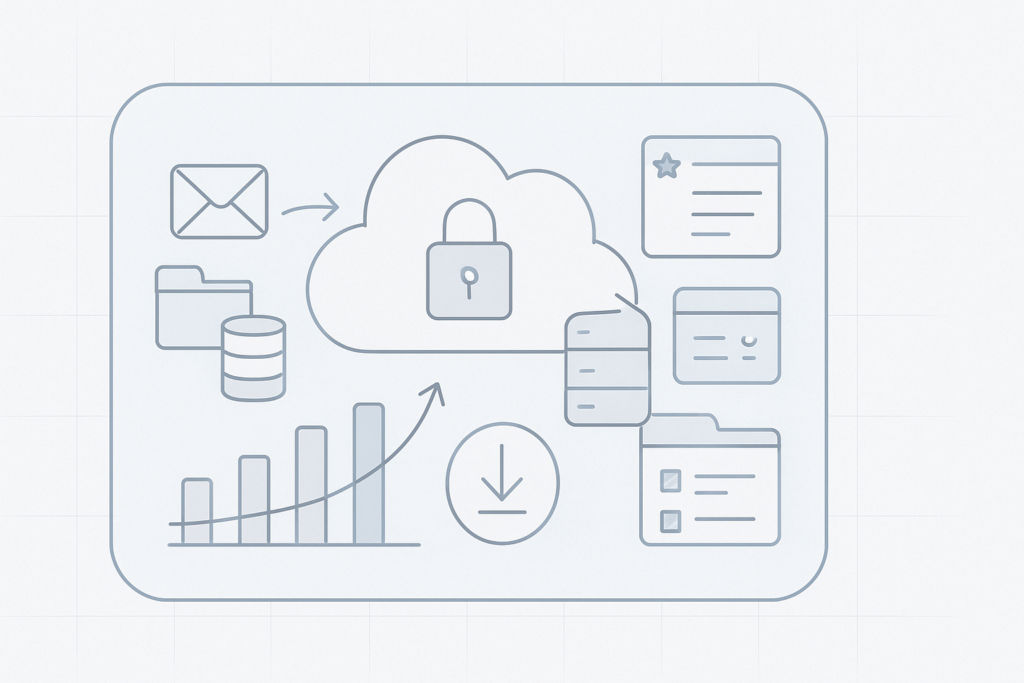
Easy Backup secures your website files and databases with encrypted, cloud-hosted backups and incremental backup capability. Backups are stored on our Cloud Servers and are accessible online so you can restore data quickly if something goes wrong.
Key benefits
- Incremental backups: only changed data is copied after the first full backup, saving storage and time.
- Encrypted and cloud-hosted: backups are stored encrypted on our Cloud Servers and accessed securely.
- File-level restore: recover single files without restoring the entire site.
- One-click download: download any backup version as a compressed archive for manual restoration or migration.
Why backups matter
Websites face risks like hacking, accidental deletion, or data corruption. When a site is compromised it can be blocked by search engines or lose traffic and reputation. Regular backups let you restore a clean version of your site quickly and minimise downtime and lost revenue.
How Easy Backup works
After you enter your FTP or SFTP credentials, Easy Backup automatically performs backups of all website content and databases. The system uses incremental backups to capture only changed files after the initial copy, reducing storage needs and speeding up subsequent backups. All backup data is encrypted and kept online on our Cloud Servers for easy access.
Restoring files and full sites
You can view each backup’s contents in the Backup FileManager and restore only the files you need, or perform a full site restore. Use the “one-click download” option to download any backup version as a single compressed file, which you can upload to your server to rebuild the site.
Restore options
If a single file is corrupted or accidentally deleted, restore just that file from the backup—there is no need to restore the entire site unless necessary.
Scheduling and notifications
Automate backups on a daily, weekly or monthly schedule and choose the time of day that best suits your site’s low‑traffic period. If a backup fails or your backup storage reaches capacity, the system will send an alert so you can take action promptly.
Quick checklist
- Enter and verify your FTP/SFTP details.
- Choose a backup schedule (daily, weekly or monthly).
- Confirm notification settings so you receive failure or capacity alerts.
- Test a restore periodically to ensure backups work as expected.
Getting started
To begin, provide your FTP or SFTP connection settings and enable backups. After the initial full backup completes, subsequent incremental backups will run automatically according to your schedule.
Support and troubleshooting
If you need help configuring backups, restoring files, or interpreting notification messages, contact support so we can review your backup logs and assist with recovery steps.