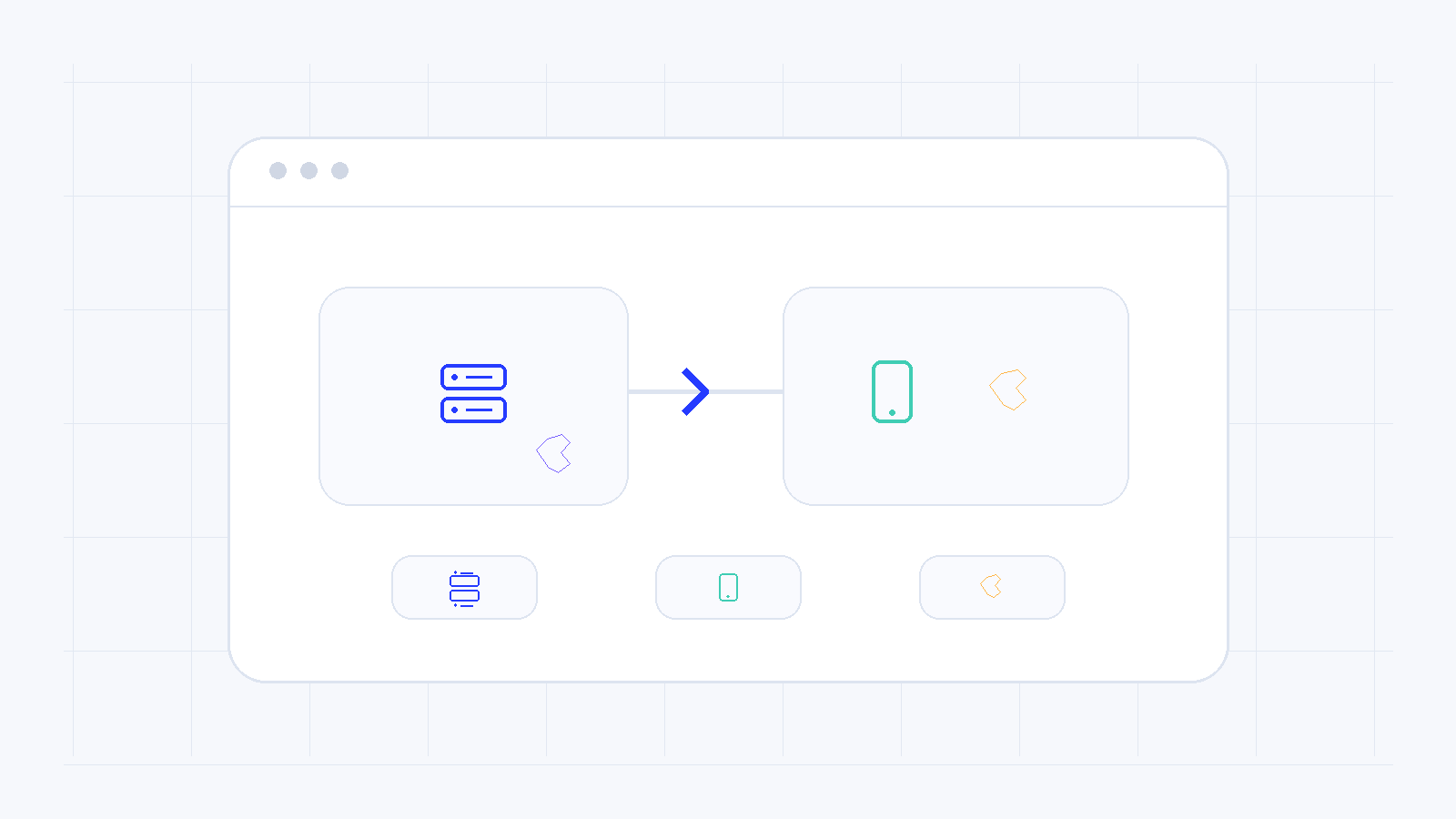
For a VoIP service to work correctly, you need proper settings both on the network device and on the application or softphone that will be used. In many cases users need guidance both for a Cosmote or OTE router and for Zoiper on iPhone or Android.
What details you need
- SIP username or account number.
- SIP password.
- SIP server or registrar.
- Any outbound proxy or special ports required by the service.
Router setup
On the router, enter the VoIP account details in the telephony or SIP section. Make sure the router allows registration, there is no conflict with another voice service and the firmware is up to date.
Zoiper setup on iPhone or Android
In Zoiper, create a new SIP account, enter the username, password and server, then verify that the application registers successfully. If problems remain, recheck the credentials, the transport protocol and the stability of the connection.
If SIP registration fails or call quality is unstable, review NAT, firewall, SIP ALG and the provider network path. In many cases the real issue is there.
Need more help?
If this guide did not resolve your issue, continue with the easy support team.
Contact support Ask easy AI