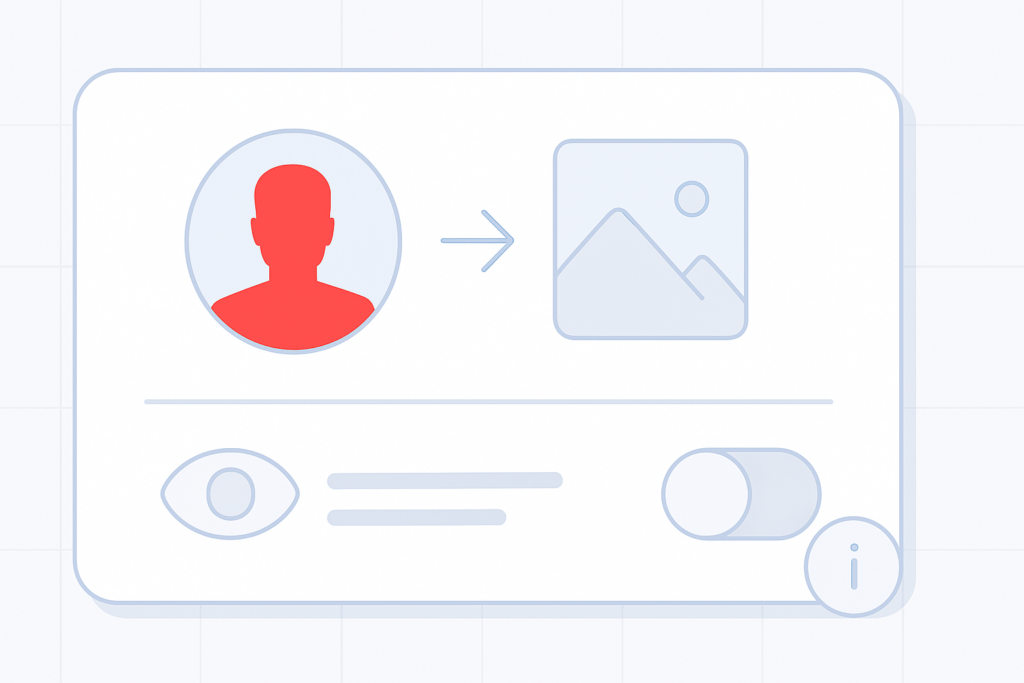
What is the avatar?
Your avatar is the small image that appears on your account card. It can be a photo, logo, icon or any graphic that represents you or your business. Adding an avatar helps other members recognise you as the community grows.
Why add one?
An avatar gives personality to your account card and makes it easier for others to identify you in the community. Upload a brand mark, photo or any image that represents you.
How to add or change your avatar
Quick steps
- Open your account Settings.
- Find the profile or avatar section and choose Upload (or Change).
- Select an image from your device and save your changes.
Use a clear, appropriately sized image for best results. You can upload a logo, photo or any graphic that represents you.
How to hide your avatar
If you prefer not to display an avatar publicly, you can disable its visibility in your display settings. Turning off the avatar display will keep your account visible without a personal image.
Remember
- Uploading an avatar personalises your account card.
- You can change the image anytime from Settings.
- If you want privacy, disable avatar display in the appearance or display settings.