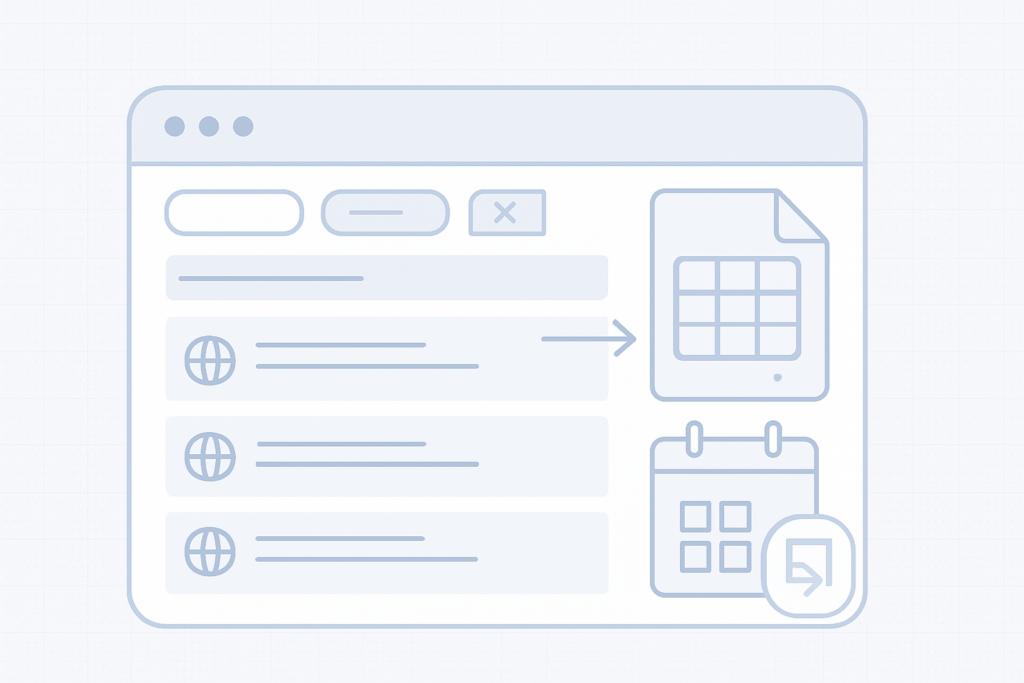
Export domains to iCal or Excel
You can export the domains shown in your domain list as an iCalendar (.ics) file or as an Excel (.xlsx) spreadsheet. Use the exported iCal file to import renewal dates into your calendar app and add alerts so you don’t miss renewals.
What the export includes
The export contains the domains currently visible in your list according to the active filters and search. For example, if you search for ".gr" and press Enter, only.gr domains will be shown and the exported file will include only those domains. The exported file includes the columns shown in your domain list, such as domain name and expiry date.
How to export
- Apply any filters or search terms to your domain list so it shows only the domains you want to export (for example, type ".gr" in the search field and press Enter).
- Use the export option for the domain list and choose the format you need: iCalendar (.ics) or Excel (.xlsx).
- Download the exported file to your computer.
- Import the.ics file into your calendar app or open the.xlsx file in a spreadsheet program to view or adjust the data.
Note
Adding an alert to the imported calendar entries gives you an extra reminder on top of any other notifications. Set the alert time that works best for you (days or weeks before expiry) to avoid late renewals and penalties.
Importing the iCal file into your calendar
Most calendar apps provide an option to import.ics files or subscribe/add a calendar. Use that option to add the downloaded.ics file to your calendar and then add alerts or notifications for the renewal dates.
Tips and reminders
- Always apply filters or search first — the export only includes the domains currently listed.
- Keep a local copy of the exported file as a backup.
- After importing, verify the timezone and alert settings in your calendar so reminders appear at the expected time.
Quick checklist before exporting
- Filter the list to include only the domains you want exported.
- Choose iCal (.ics) to import into a calendar or Excel (.xlsx) for a spreadsheet.
- Download and verify the exported file contains the expected domains and expiry dates.
Need more help?
If you have trouble exporting or importing the file, contact support with the details of the issue and a description of the steps you followed.