Overview
The billing contact is the contact record we use to issue invoices and receipts for orders (domains, hosting, websites, telephony, etc.). It is separate from any domain WHOIS/owner contact — you can keep domain ownership and invoicing details different without affecting registrations or transfers.
Where to create and edit billing contacts
Create the contact you want us to bill for each order fromSettings → Billing Addresses. Add the exact name, address and tax (VAT/AFM) number that should appear on invoices.
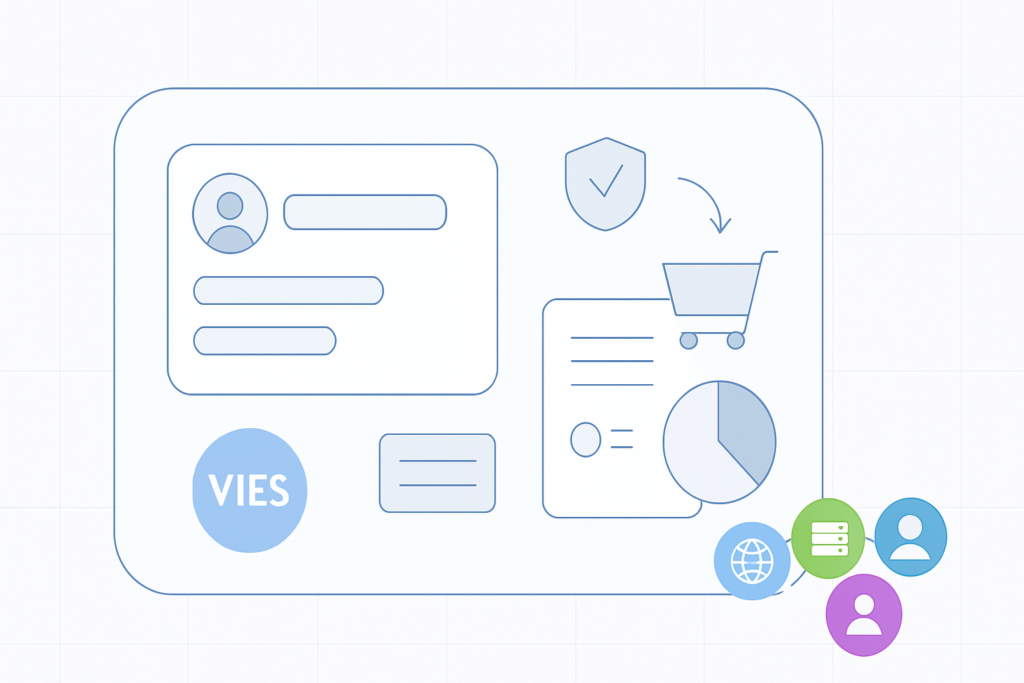
Quick stepsOpen Settings → Billing Addresses.Click to add a new billing contact and fill in the details (name, address, VAT/AFM, alias).When purchasing, select the desired billing contact on the second step of the cart/checkout before completing payment.If you need an invoice, the VAT number (AFM) will be verified online via VIES at issuance.
Changing billing details for a single order
If you forgot to set the billing contact beforehand or you want a specific order invoiced to different details, add or select the correct billing contact during the checkout process (before you reach the payment screen). The system will use the chosen billing contact for that order only.
VAT validation (VIES)For issued invoices we verify the VAT/AFM number online with the VIES service. Make sure the VAT number you provide is valid and corresponds to the invoiced entity.
Tips for managing multiple billing contacts
- Give each billing contact a clear alias so you can identify them quickly (for example: client4domains1, client4hosting1, telephony1).
- Use separate billing contacts to group services (domains on one contact, hosting on another) or to invoice different clients or departments.
- Keep billing contact details up to date to avoid delays when issuing invoices.
Before you complete checkoutAlways verify the selected billing contact on the cart's checkout page. If you need an invoice, confirm the VAT/AFM is correct — it will be checked automatically when the invoice is issued.