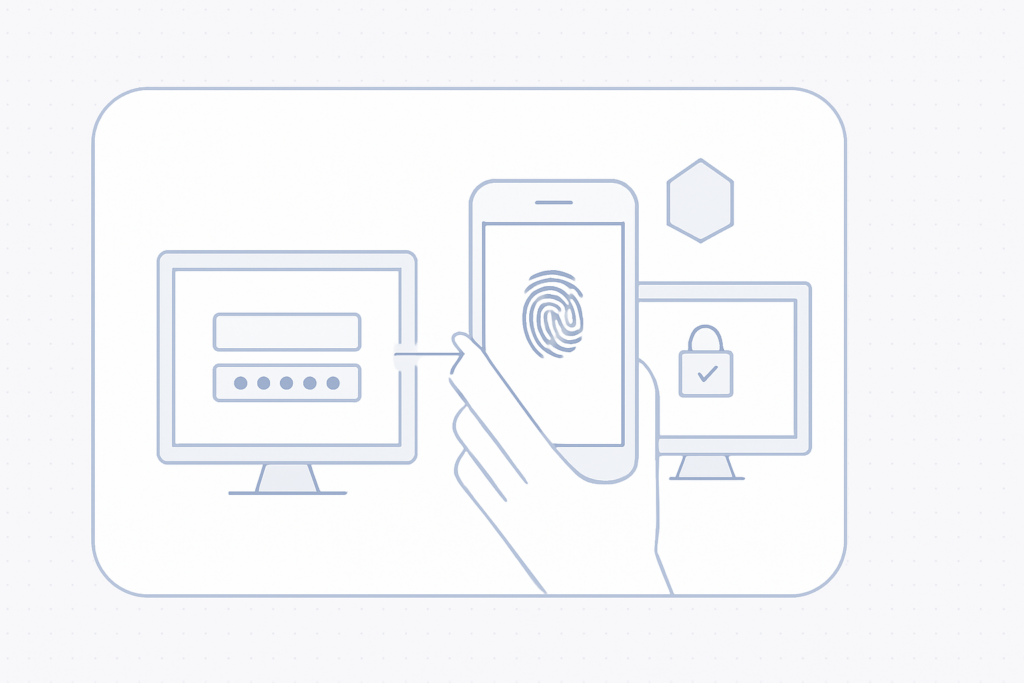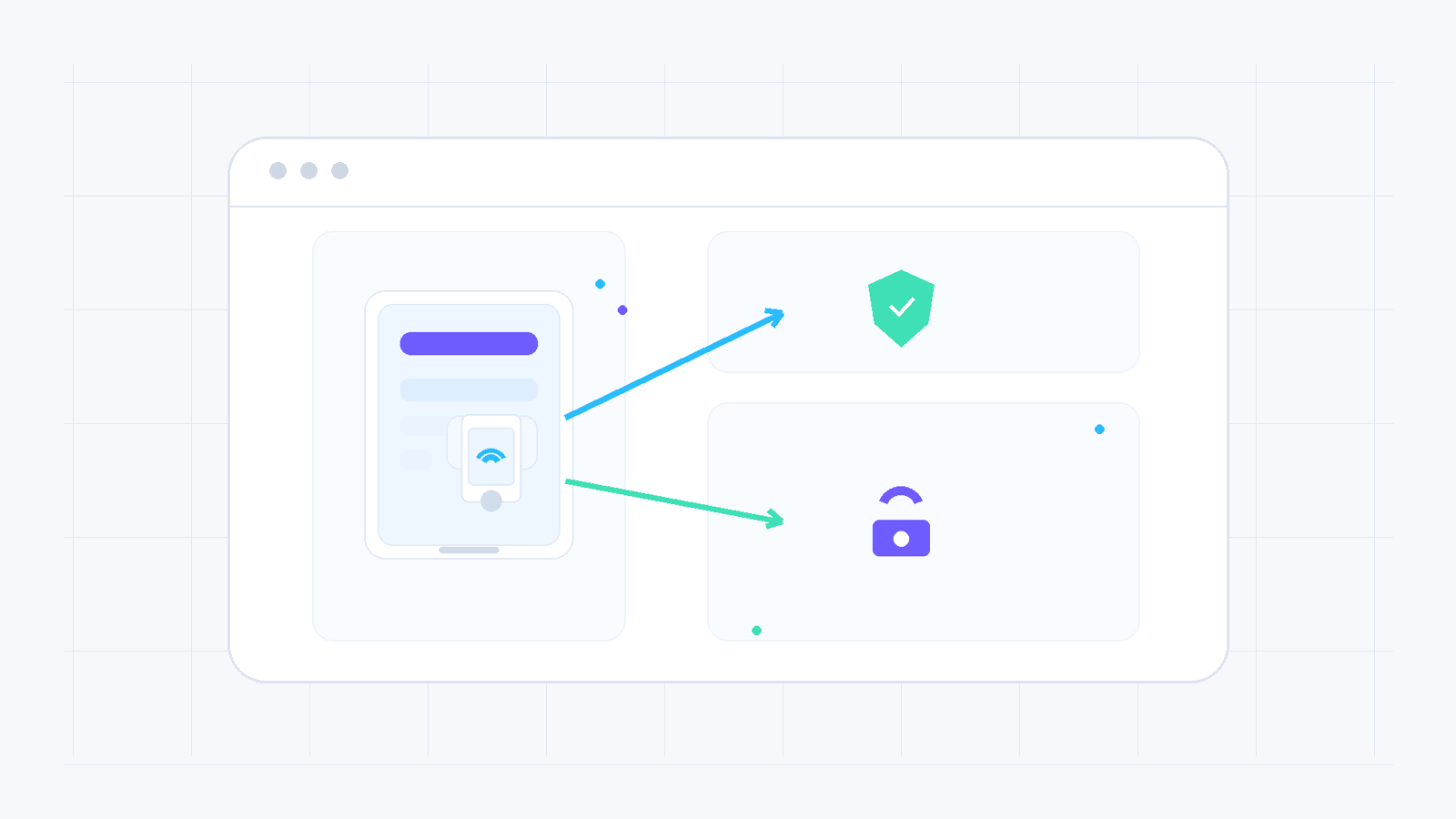
Two-Factor Authentication, or 2FA, adds an extra protection layer to your account. Username and password alone are no longer enough; after login you also need a temporary code from an OTP app on your phone or tablet.
What 2FA gives you
With 2FA enabled, the risk of unauthorized account access is greatly reduced. Even if someone learns your password, they still cannot sign in without the additional code generated on your device.
How it works with an OTP app
You need an authenticator application such as Google Authenticator or another OTP app. The application generates a temporary code with a short lifetime, usually around 30 seconds, which you enter after the basic login step.
Enable it step by step
- Sign in to your account on easy.gr.
- Open Settings and enable Two-Factor Authentication.
- Install an OTP app on your phone or tablet if you do not already have one.
- Scan the QR code shown on the screen.
- Enter the initial code from the app in the test field and save the setup.
What to expect afterwards
Once enabled, every login to your account will also require the 2FA code. This means plain username/password or a social login alone will no longer be enough as long as the extra security layer is active.
If you lose the device or the OTP app and do not have recovery details, contact support with your full account information so 2FA can be disabled and re-enabled from scratch.
Need more help?
If this guide did not resolve your issue, continue with the easy support team.
Contact support Ask easy AI