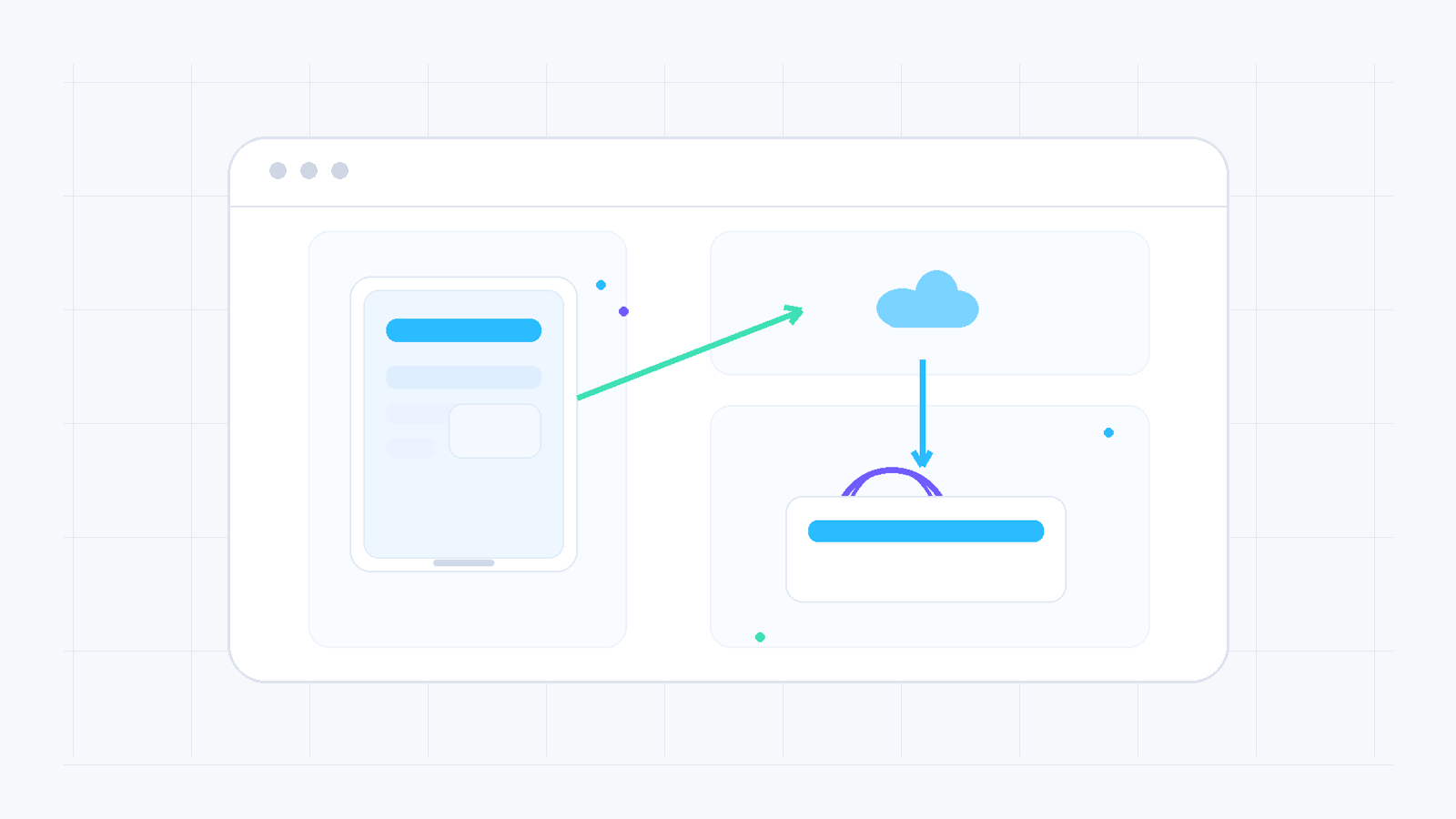
If you want faster delivery of static WordPress assets, a CDN can help a lot. In the legacy material, the suggested flow was based on the W3 Total Cache plugin with a Generic Mirror style setup.
When a CDN is useful
A CDN is useful when your site serves many static files such as images, CSS and JavaScript and you want to reduce latency for visitors coming from different regions.
Installing the plugin
From the WordPress admin area, go to Plugins, add or activate W3 Total Cache and then open its settings.
Enabling the CDN
Inside the plugin settings, enable CDN and choose the appropriate connection type. In the legacy example, Generic Mirror is used so you can define the accelerated URL of your CDN endpoint.
Final checks
- Confirm that static assets are loading from the CDN domain.
- Purge cache from the plugin and your browser.
- Test the site on desktop and mobile.
- Watch for mixed content or broken asset URLs.
If styles break or images do not load after the setup, first review the CDN base URL and cache rules before making deeper changes.
Need more help?
If this guide did not resolve your issue, continue with the easy support team.
Contact support Ask easy AI